
- Invalidates the device’s current authentication session.
- Creates a new authentication session for the device.
- Redeploys the device’s current deployment.
Use cases
Reprovisioning a device is useful for:- Removing the
miru-agentand cleanly reinstalling it - Transferring a Miru device to a different physical machine
miru-agent package. If you simply want to upgrade the miru-agent package, follow the Miru Agent upgrade documentation.
Dashboard
Reprovisioning a device is only supported via the Miru dashboard. Support for programmatically reprovisioning devices is coming soon.Reprovisioning requires Miru Agent v0.9.0 or later. For older agents, Reprovision
is disabled; upgrade the agent first.

Install the miru-agent package
If the machine doesn’t have the miru-agent package installed (for example, a new machine or a clean reinstall), install it first by following the agent installation documentation.
Reprovision the device
Once themiru-agent package is installed, run the reprovisioning command from the dialog. If you closed the dialog, select Reprovision from the device’s ellipsis menu again.
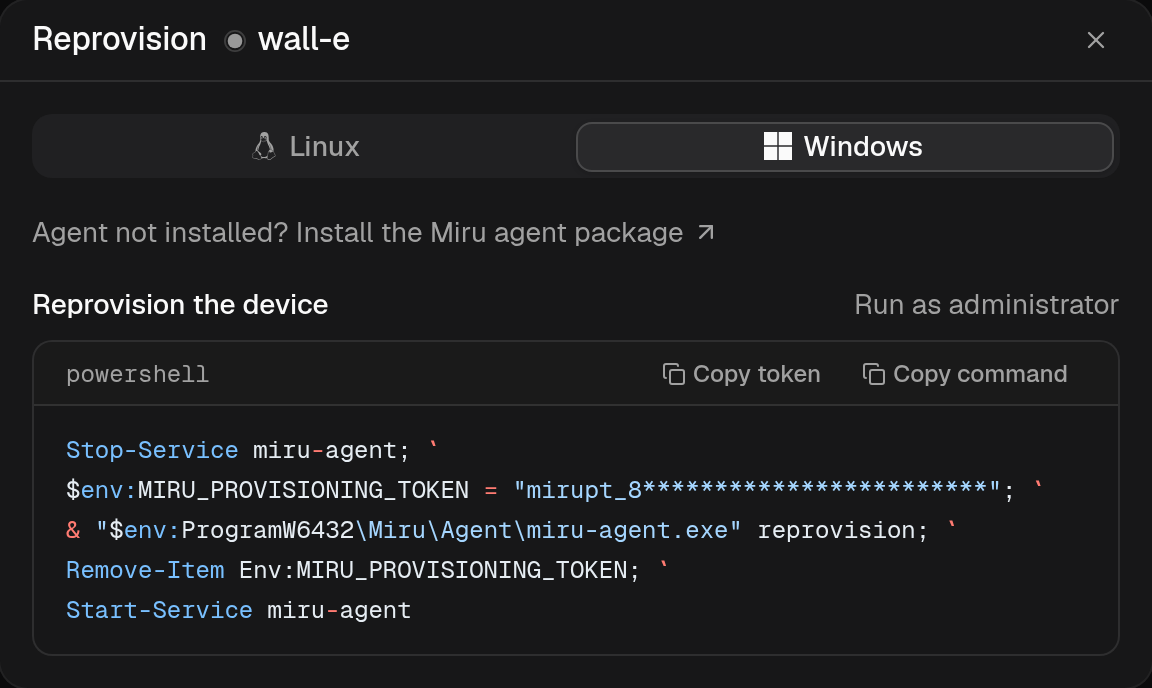
The dialog will present a pre-authenticated command that invokes the miru-agent binary with a short-lived (5 minutes) token to reprovision the device for your workspace. Select the appropriate operating system.
- Linux
- Windows
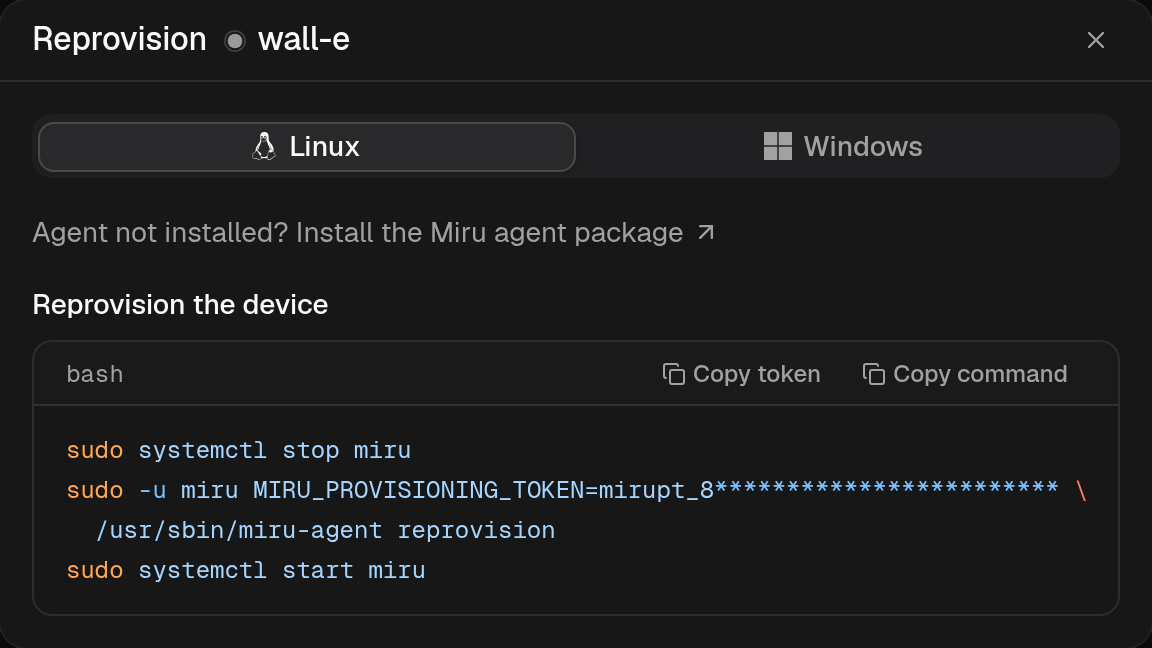
sudo systemctl stop mirustops themiru-agentservice.sudo -u mirusets the command to run as themiruuser.MIRU_PROVISIONING_TOKEN=<token>authenticates the request./usr/sbin/miru-agent reprovisionexecutes themiru-agentbinary with thereprovisioncommand.sudo systemctl start mirustarts themiru-agentservice.