

Create a device
If you don’t yet have a device in Miru, you’ll need to create one. Navigate to the Devices page.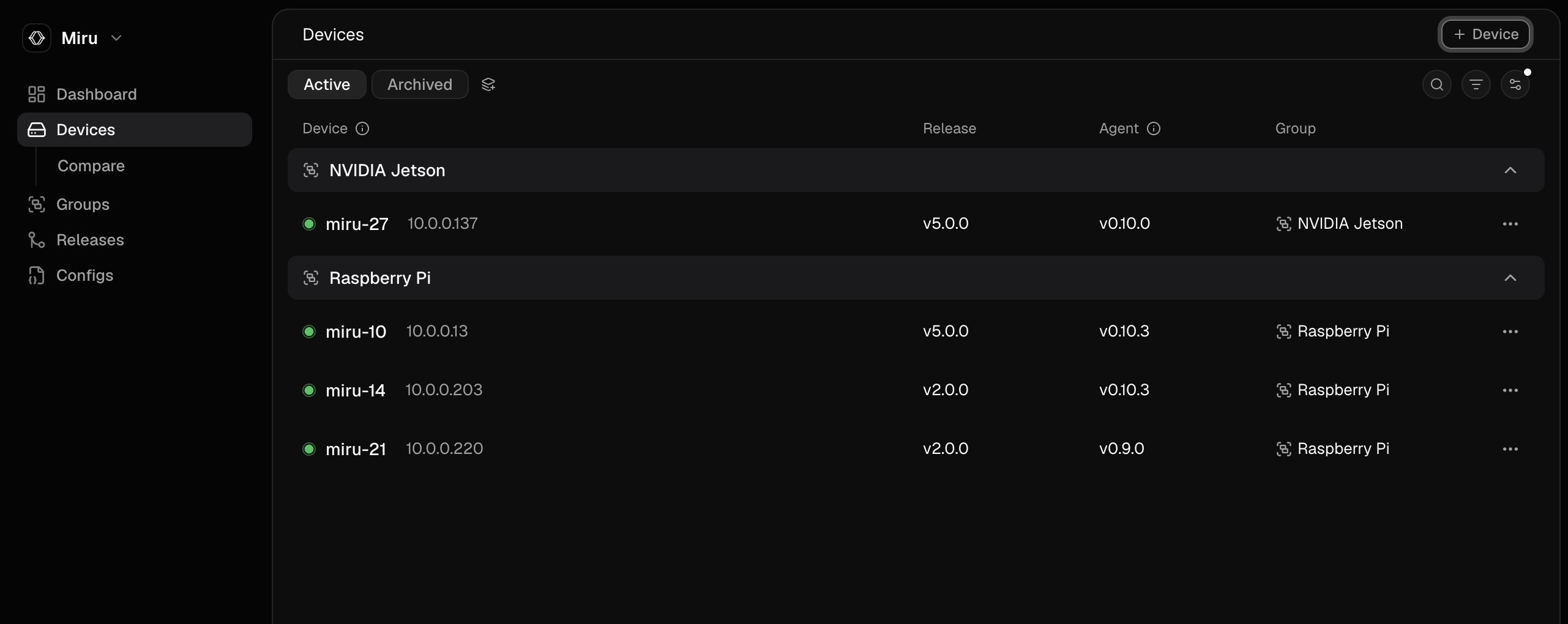
Install the miru-agent package
Click the Provision button on the device you want to provision.

- Linux
- Windows
Follow the instructions to set up Miru’s apt repository and install the 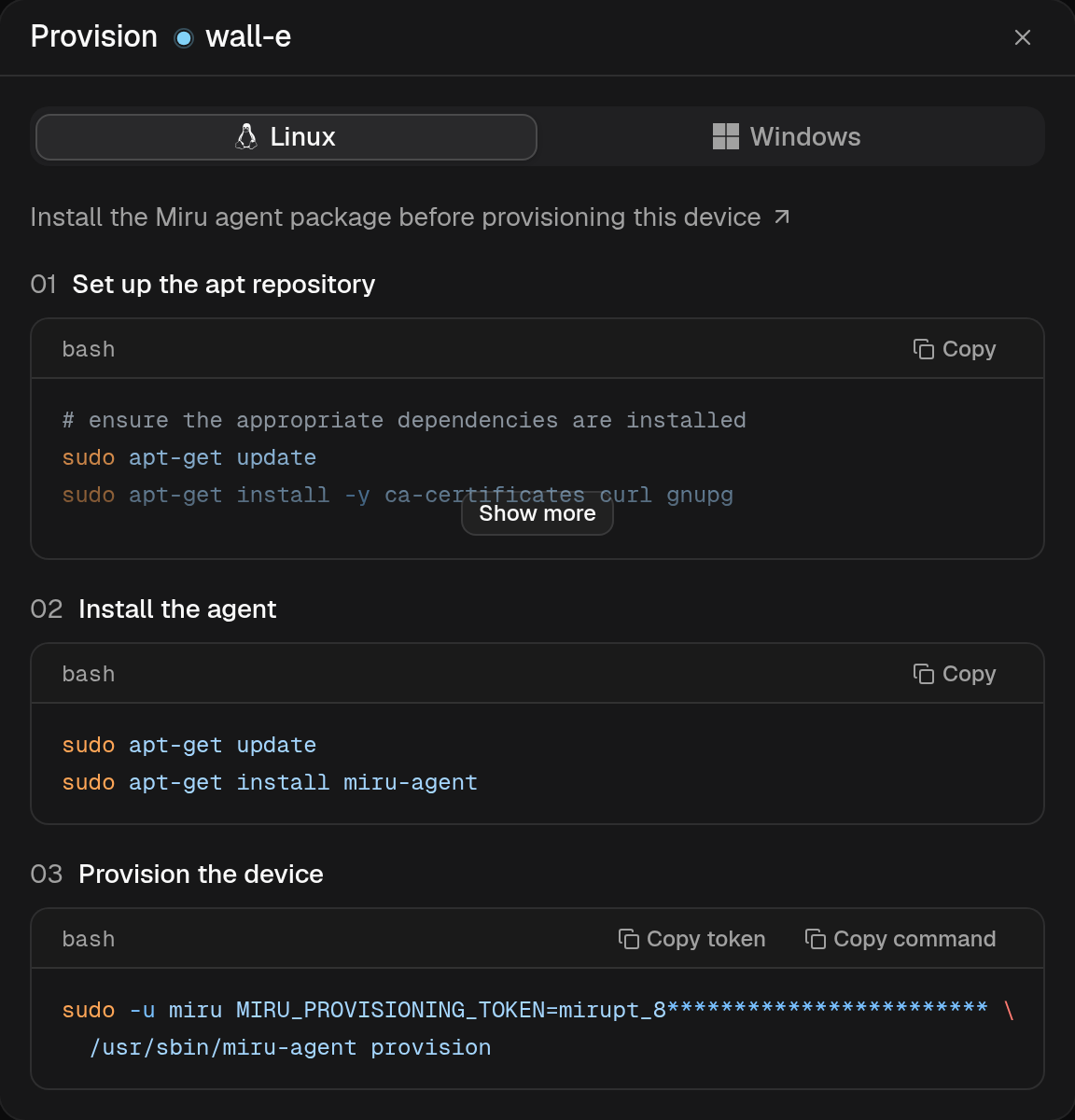
miru-agent package. If you’ve already installed the Miru Agent, you can skip these steps.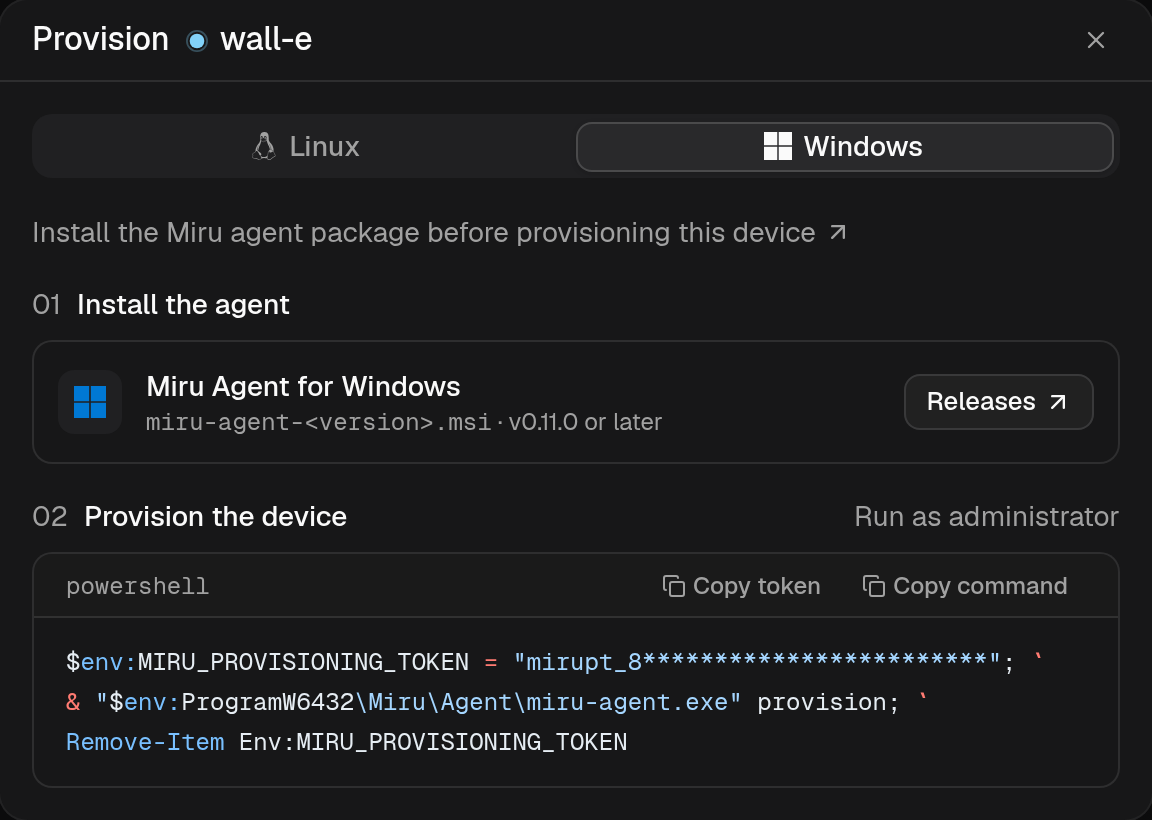
Provision the device
Once themiru-agent package is installed, run the provisioning command from the same dialog.
The dialog’s provisioning step presents a pre-authenticated command that invokes the miru-agent binary with a short-lived token (5 minutes) to provision the device for your workspace.
- Linux
- Windows
The command can be broken into the following components:
sudo -u mirusets the command to run as themiruuser.MIRU_PROVISIONING_TOKEN=<token>authenticates the request./usr/sbin/miru-agent provisionexecutes themiru-agentbinary with theprovisioncommand.
Verify the installation
To verify the Miru Agent was successfully installed and provisioned in Miru, navigate to the Devices page. You should see the device listed with the statusActivating before transitioning to Online.
The transition from
Activating to Online may take up to 10 seconds, depending on your network connection.