
Properties
string
The name of the bucket in your cloud storage account that uploads are written to. Bucket names must be unique within a Miru workspace.Example:
robot-logs-bucketenum
The cloud storage provider backing the bucket.Allowed values:
gcsaws
Bucket Config
View a bucket
To view a bucket, navigate to the Buckets page and click the bucket. Its details show the provider, its connection details (region, Role ARN and External ID for AWS; service account for GCS), and when and by whom it was created.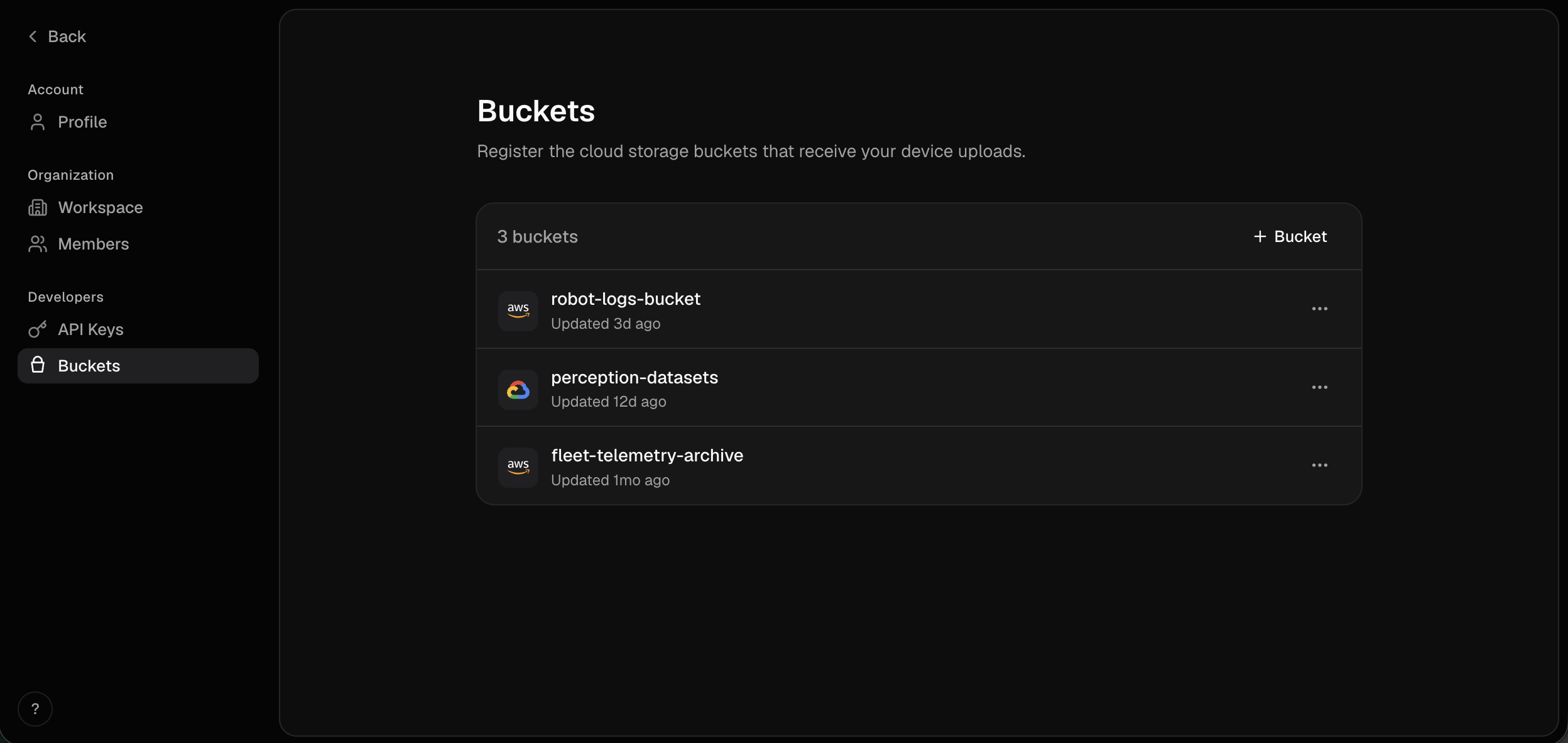
Connect a bucket
To connect a bucket, follow the GCS or AWS S3 guide.Verification
When you connect a bucket or change its Role ARN, Miru checks its access before saving:- It uploads an empty object under
.miru/probe/, then tries to delete it. With the write-only access the connect guides grant, the object stays in the bucket. - For AWS buckets, it also confirms your role can’t be assumed without the external ID.
Edit a bucket
Only an AWS bucket’s Role ARN can be edited; GCS buckets have nothing to edit. To upload to a different bucket, connect a new one. To edit a bucket, click the ellipses (…) on the bucket and select Edit.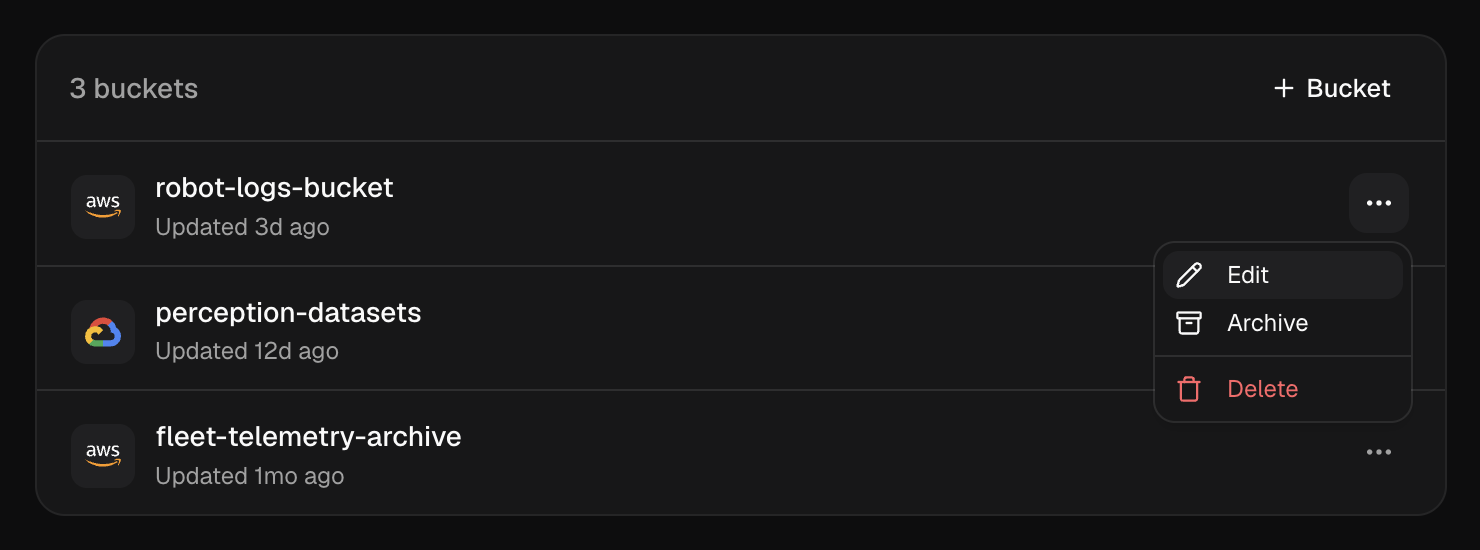
Miru verifies the bucket again before saving.
Delete a bucket
Deleting a bucket is only possible if there are no file rules associated with the bucket, the backup settings don’t point at it, and no backup has run to it. Otherwise, you must archive the bucket instead, or first change where backups go. To delete a bucket, click the ellipses (…) on the bucket and select Delete.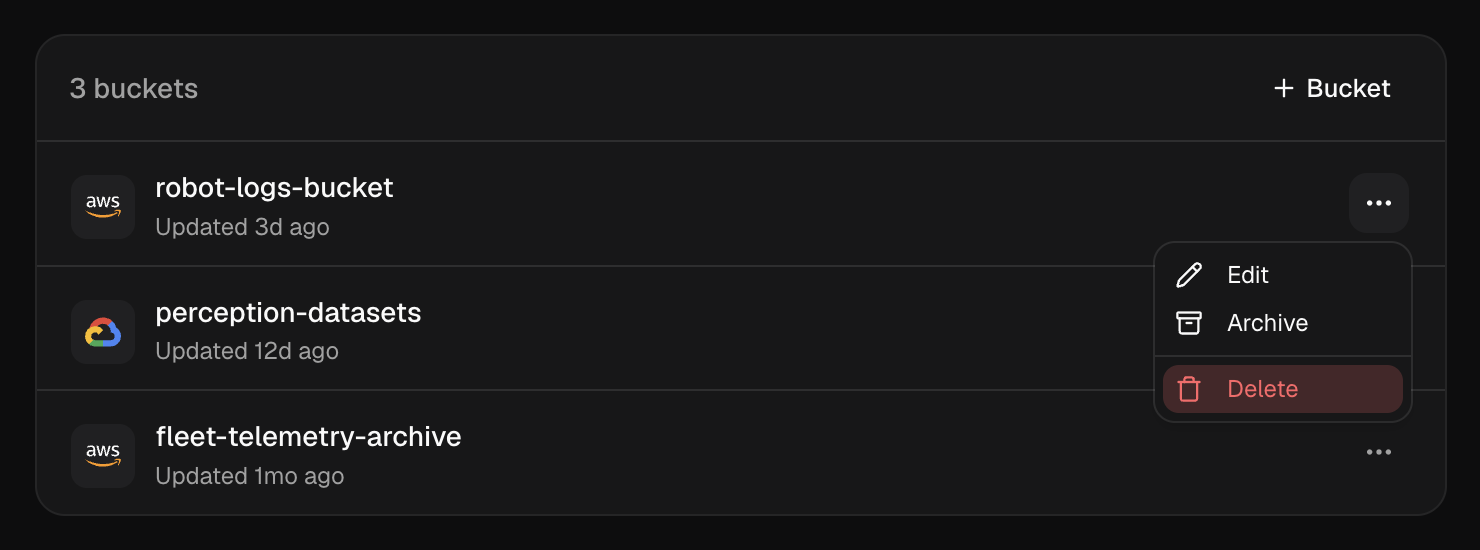
Archive a bucket
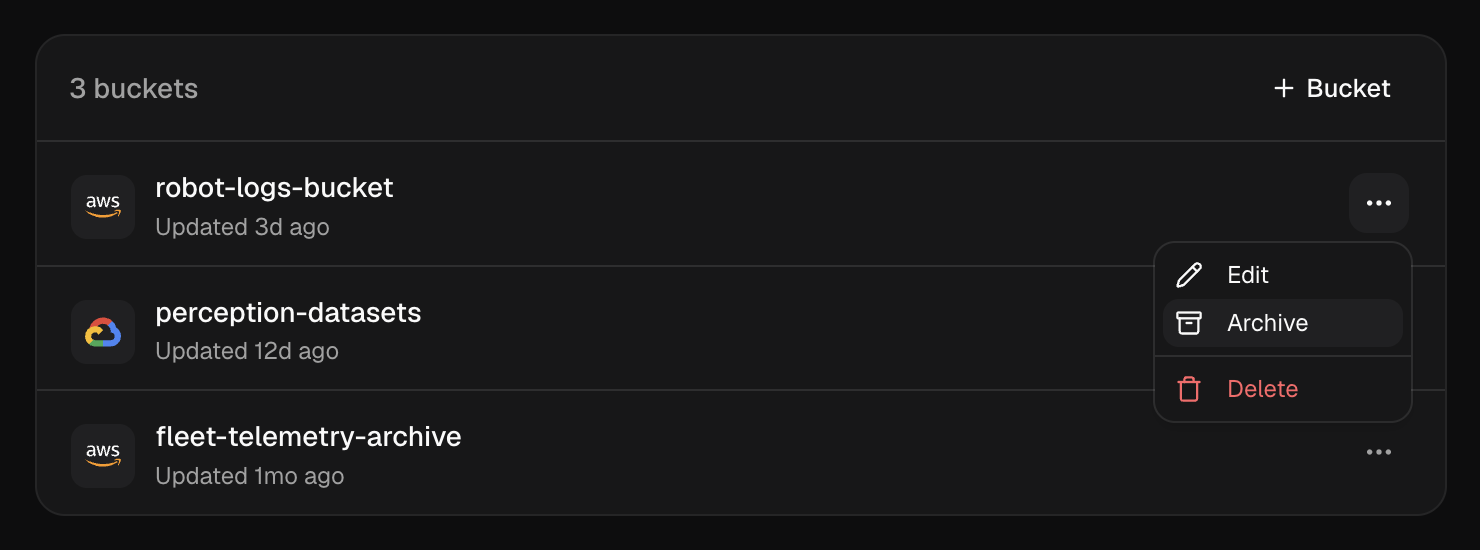
Archiving a bucket prevents any data uploads from being written to the bucket. However, it does not delete the bucket itself, and can be unarchived at any time. A bucket the backup settings point at can’t be archived. Turn off backups or change where they go first. To archive a bucket, click the ellipses (…) on the bucket and select Archive.