
v1.7.0 might specify the following schemas:
Before deploying config instances to a device, the deployment’s release (
v1.7.0) is used to verify that all required config instances are present and that each instance complies with the release’s schemas.
Properties
string
A semantic version, unique for a given release.Versions must be dot-separated integers. You may optionally use a
v prefix, a prerelease suffix (e.g. -alpha.X, -beta.X, -rc.X), or a build suffix (e.g. +build-metadata).Examples: v1, 1, v2.1, 2.1, v3.2.1, 3.2.1, v4.3.2-beta.1, 4.3.2-rc.1, v5.4.3+metadata, 6.5.4-beta.2+metadata[] Config Schema
The config schemas that define compatible config instances for the release.Examples:
SCH-FmoDN, SCH-3JcLq, SCH-HHDRn[] File Rule
The file rules that are part of this release.Examples:
FLR-FmoDN, FLR-3JcLq, FLR-HHDRnView a release
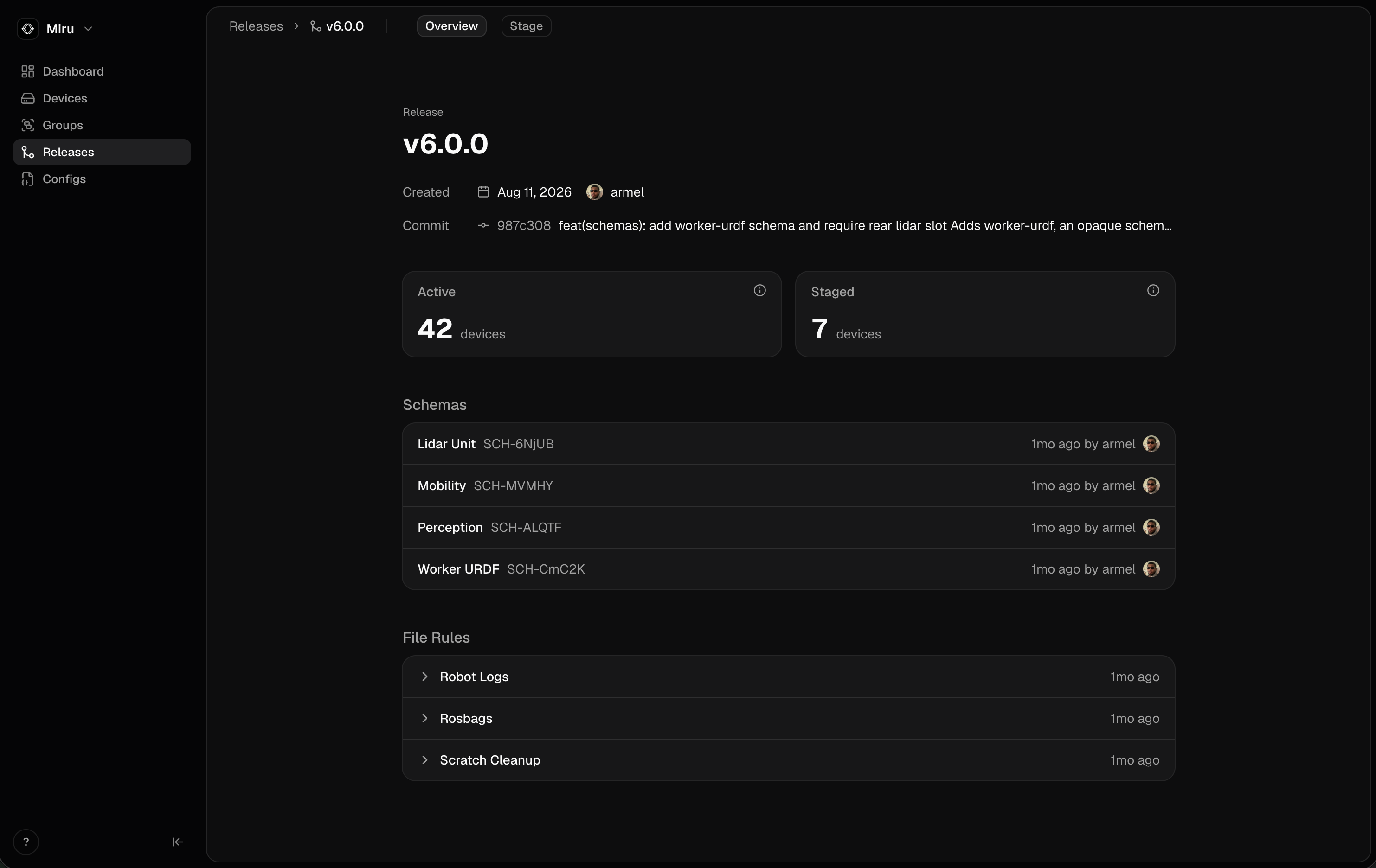
To view a release, click into it from the Releases page and open the Overview tab:- Active and Staged: how many devices are on this release, and how many have a deployment staged for it.
- Schemas: the release’s config schemas. Click one to view it.
- File Rules: the release’s file rules.
Create a release
Releases are created via the CLI — visit the config management create a release guide. To add file rules to a release, visit the data uploads define file rules guide.Duplicate a release
Duplicating a release creates a new release with the same config schemas, file rules, and git information, under a new version. Deployments aren’t copied. To duplicate a release, click the ellipses (…) on the release, or right-click it, and select Duplicate.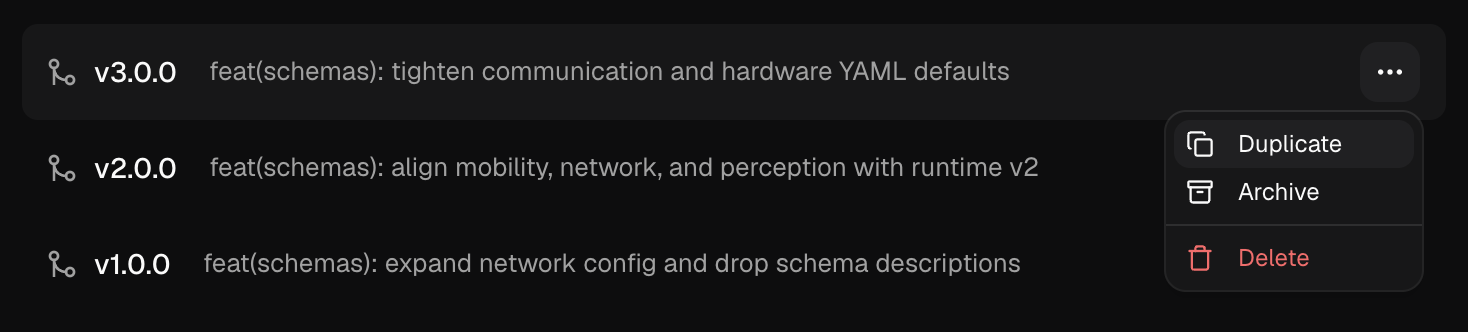
Archive a release
Archiving a release hides it from the releases list and restricts deployments to only devices currently running that release. New devices cannot be deployed with an archived release and existing devices cannot switch to or rollback to an archived release. Archiving a release retains its config schemas and deployment history, and releases can be unarchived at any time. To archive a release, click the ellipses (…) on the release, or right-click it, and select Archive.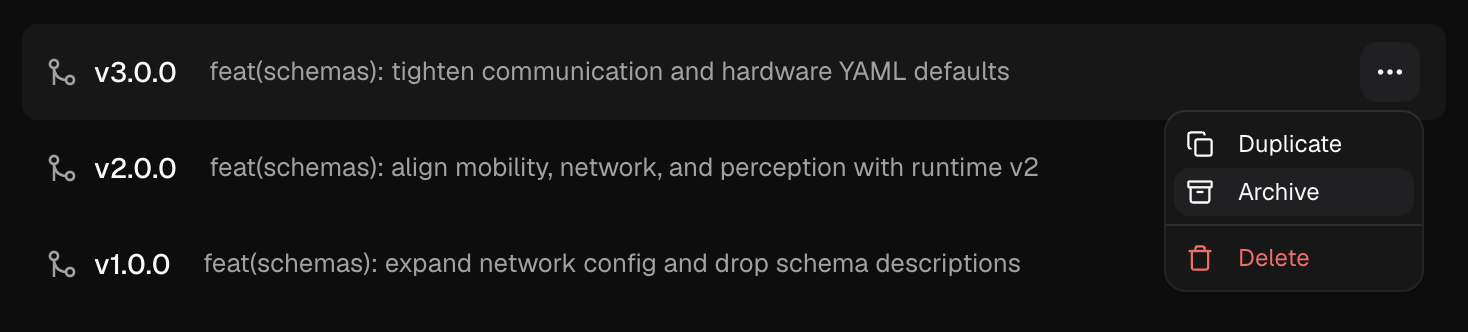
Unarchive a release
Unarchiving a release makes it available for any device to deploy from it again. Find the release among the archived releases, click the ellipses (…), or right-click it, and select Unarchive.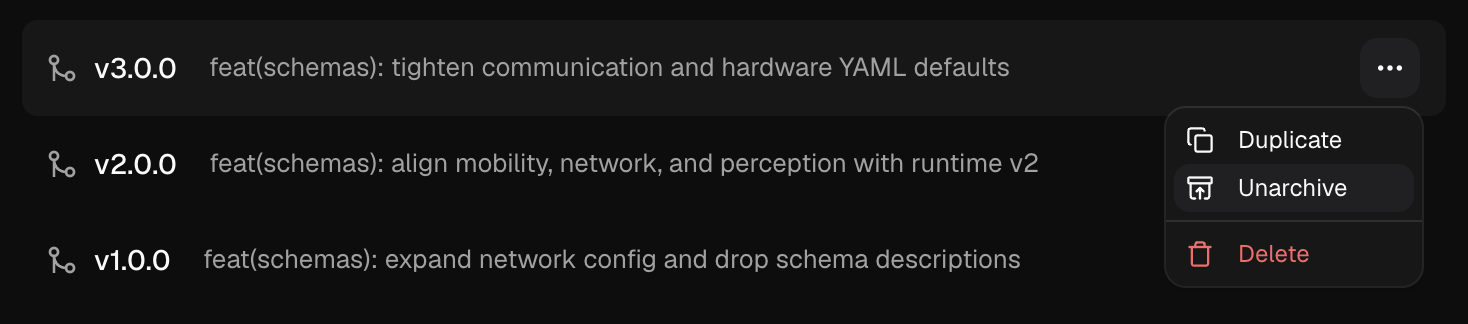
Delete a release
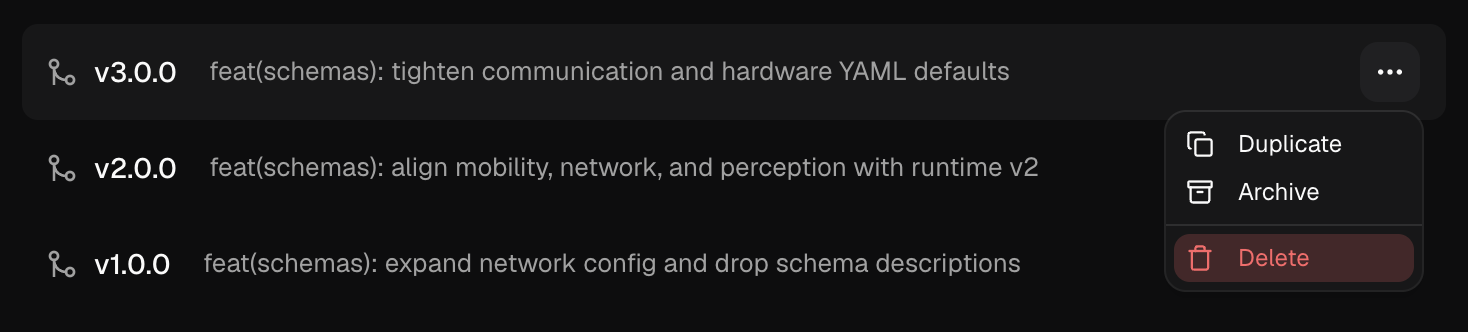
A release can only be deleted if it has no deployments, including staged ones. Otherwise, the release cannot be deleted; archive it instead. To delete a release, click the ellipses (…) on the release, or right-click it, and hit Delete.