The Devices page lists every device in your
workspace. Use search, filters, and display options to find the devices you need, and
save them as views to come back to later.
Search devices
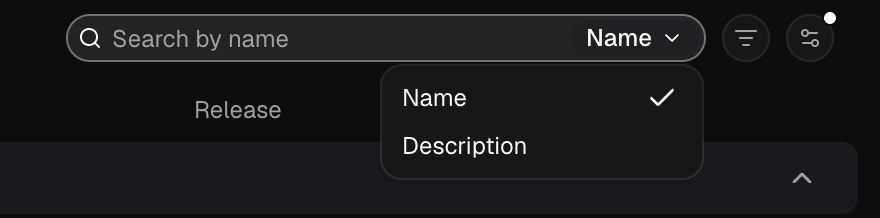
Click the search icon above the list, type, and press Enter. Search matches device
names by default; switch the field to Description to search descriptions instead.
Filter devices
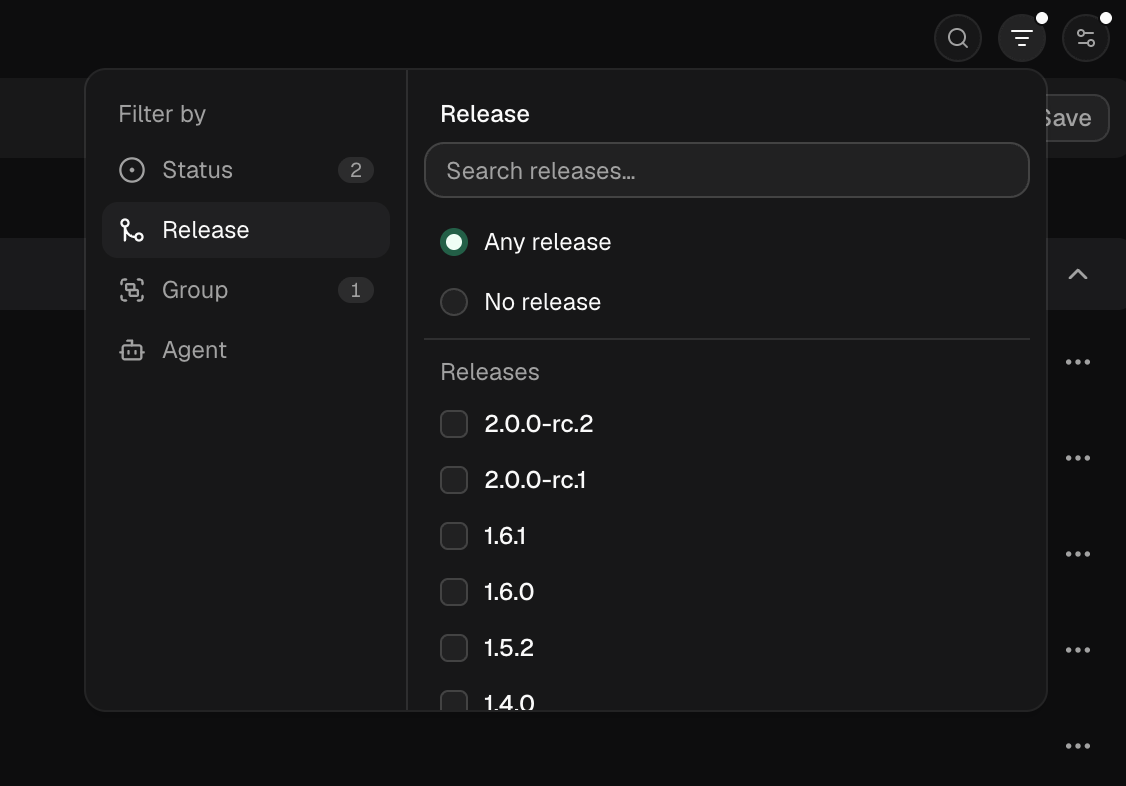
Click the filter icon and filter by status, release, group, or agent version. You can
also find devices with no release, group, or agent version.
Selecting multiple values in the same filter widens the list: online and offline shows
devices that are online or offline. Adding another filter narrows it: online with
release v2.0.0 shows devices that are online and on v2.0.0.
Active searches and filters appear as chips above the list. Click a chip’s × to remove
it, or Clear to remove them all. Filters are saved in the page’s URL, so you can
bookmark or share a filtered list.
Display options
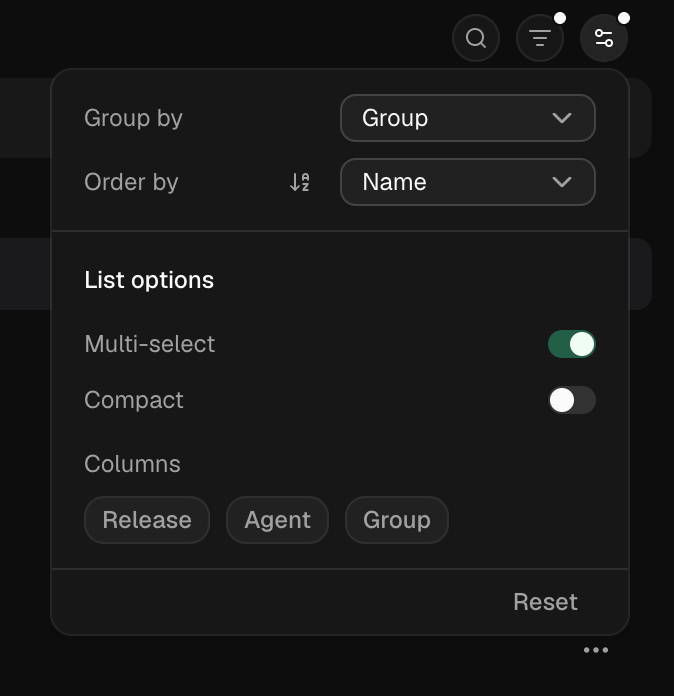
Click the display icon to group the list by status, release, group, or agent version,
sort it by name or status, switch to compact rows, or show and hide columns.
Saved views
A saved view keeps a search, filters, grouping, sort order, and visible columns so you can
return to them in one click. Saved views appear as tabs above the list, after Active
and Archived. Each group on the Groups page has
its own saved views, separate from these.
Save a view
Search and filter the list, then click Save next to the filter chips. Name the view
and click Save. A view needs at least one search or filter.
Views are shared with the workspace by default. Turn off Share with workspace to keep
a view to yourself; private views show a lock icon. Anyone who can see a shared view can
edit or delete it.
Update a view
When you change the view you’re on, a dot appears on its tab. Click Save to keep the
changes, or Discard to undo them.
Edit, duplicate, or delete a view
Right-click a view’s tab to edit its name, description, or sharing, duplicate it, or
delete it. Deleting a shared view removes it for everyone. Last modified on September 29, 2026