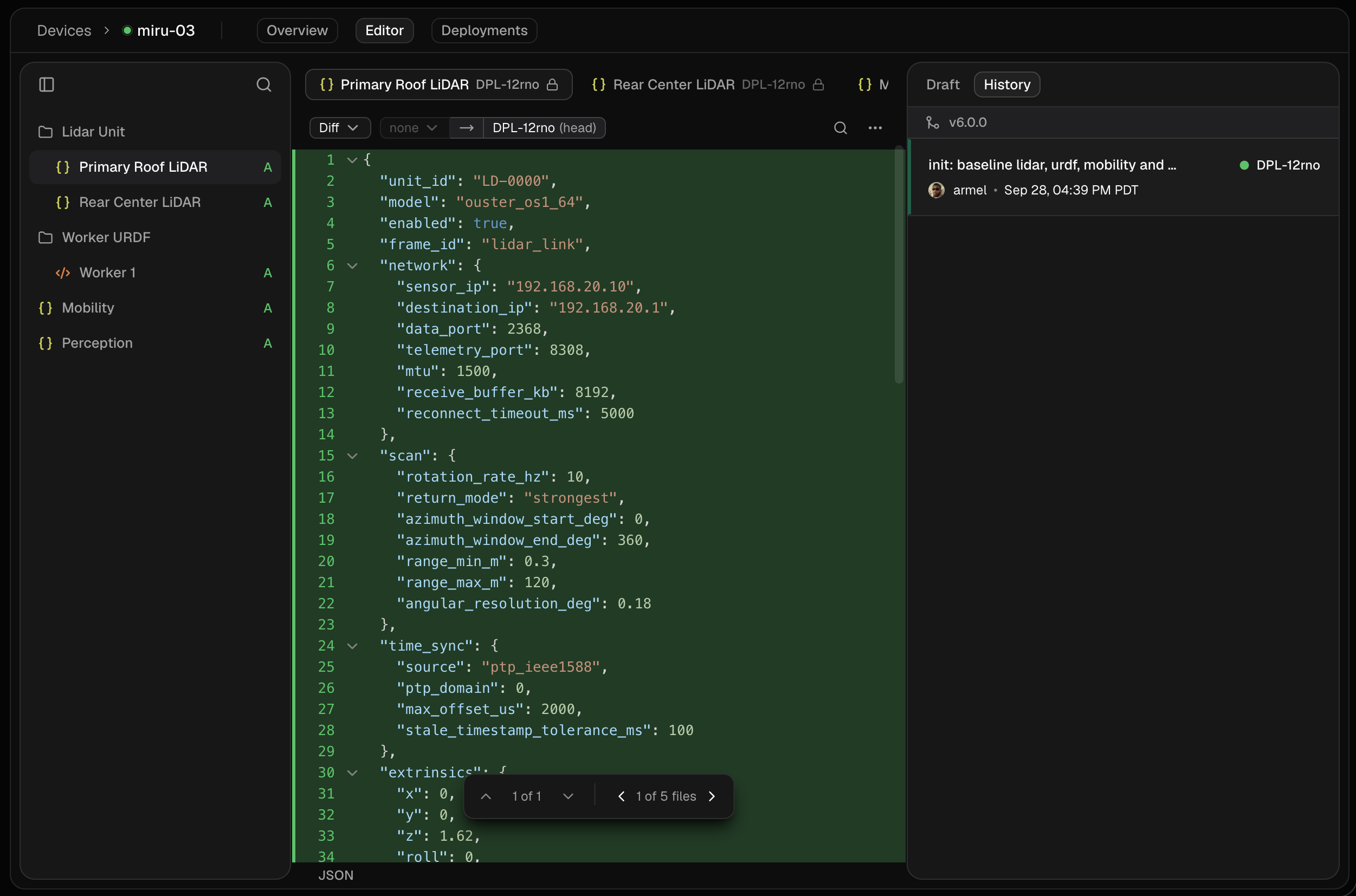

Select a device
To create a device’s initial deployment, navigate to the Devices page.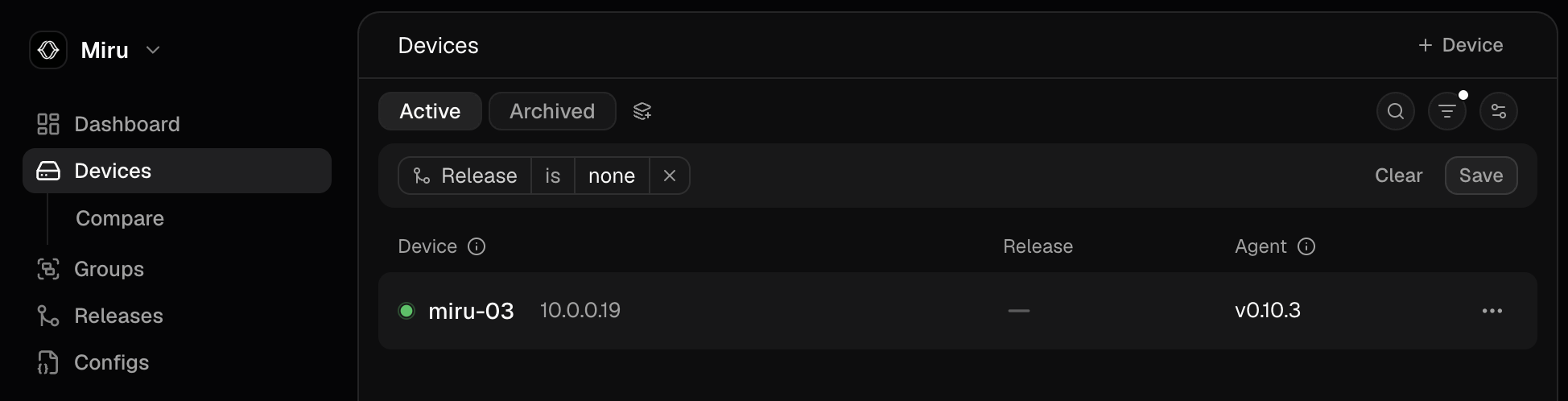
Set the release
The editor opens with the Set Release dialog. Choose the release for the device’s first deployment and click Select. If the dialog doesn’t appear, click Select a release in the editor.If no releases are shown, you will need to
create a release before
continuing.
Edit configs
Once the release is set, the editor opens in draft mode. Since this is the first deployment, it automatically fills with default values from your release’s config schemas.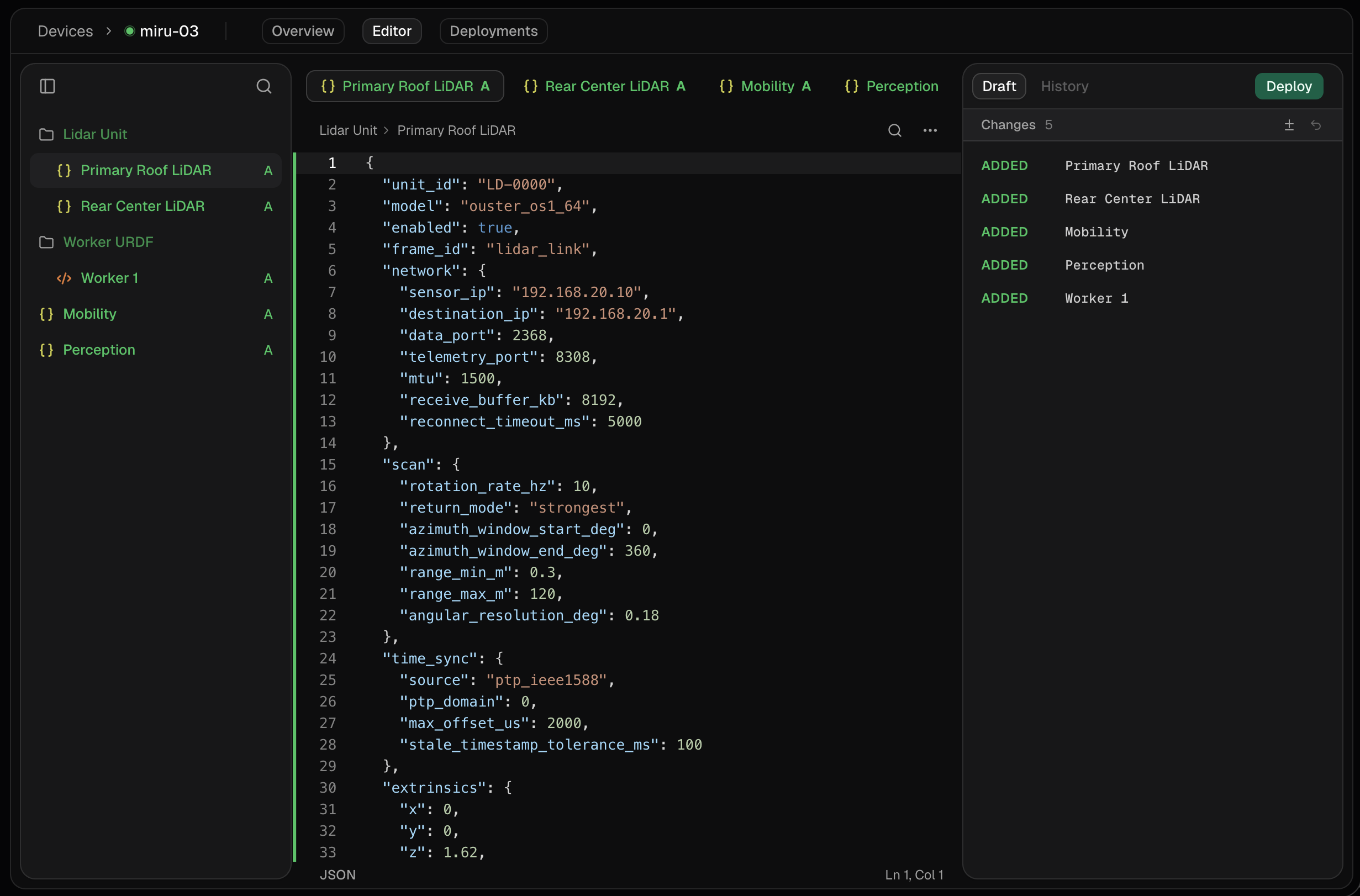
For a detailed overview of the editor interface see the
config editor page.
Deploy
Once you’re satisfied with the configuration, click Deploy to open the deploy dialog.1
Review changes
For a first deployment, every file is listed as added.
2
Add a description
For example,
init: baseline lidar, urdf, mobility and perception configs.3
Confirm the device name
Skipped when Skip deploy confirmation
is on.
4
Deploy
The deployment is queued until the
device is online to receive it.