> ## Documentation Index
> Fetch the complete documentation index at: https://docs.mirurobotics.com/llms.txt
> Use this file to discover all available pages before exploring further.
# Manage devices
export const ViewerBadge = ({size = "md"}) => {
return
viewer
;
};
export const ProvisionerBadge = ({size = "md"}) => {
return
provisioner
;
};
export const AdminBadge = ({size = "md"}) => {
return
admin
;
};
export const PlatformUnsupportedBadge = () => {
return
Platform API
;
};
export const PlatformApiBadge = ({endpoint, label = "Platform API"}) => {
const href = `/references/platform-api/2026-08-17/endpoints/${endpoint}`;
return
{label}
;
};
export const OFFLINE_TOOLTIP = {
tip: "Device has lost connection with Miru's servers",
cta: "Learn more",
href: "/learn/devices/overview#status"
};
export const ONLINE_TOOLTIP = {
tip: "Device is connected to Miru's servers",
cta: "Learn more",
href: "/learn/devices/overview#status"
};
## View a device
To view a device in Miru, navigate to the [Devices page](https://app.mirurobotics.com/devices), click into the device you want to view, and switch to the **Overview** tab at the top.
**Metadata**
At the top of the page, you'll find the device's metadata, including its name, status, agent version, and more.

**Audit trail**
At the bottom of the page, you'll find a complete audit trail of deployments made to the device.

## Provision a device
To provision a device, visit the [device provisioning](/provision-devices/overview) documentation.
## Edit a device
Navigate to the [Devices page](https://app.mirurobotics.com/devices), click the ellipses (...) on the device you want to edit, and hit **Edit**.

Update the desired fields, then click **Save**.

## Ping a device
Pinging a device sends a real-time request to verify whether it is online. Ping requests wait up to 5 seconds for a response from the device before timing out.
Online devices should return a success message similar to the one below.

On the other hand, offline devices should return a timeout message similar to the one below.

## Move a device
To move a device to a different group, click the ellipses (...) on the device you want to move and select **Move**.

A dialog will appear—select the group you want to move the device to and hit **Move**.

## Archive a device
Archiving a device:
* Sets its [status](/concepts/devices/overview#status) to `archived` and hides it from the devices list
* Immediately invalidates the device's authentication session, so the Miru Agent can no
longer connect to Miru or receive config updates
* Prevents new deployments to the device
* Frees up a device slot in your plan's device limit (archived devices do not count toward billing)
Archiving keeps the device's full deployment and configuration history. No data is lost when archiving a device and it can be restored at any time.
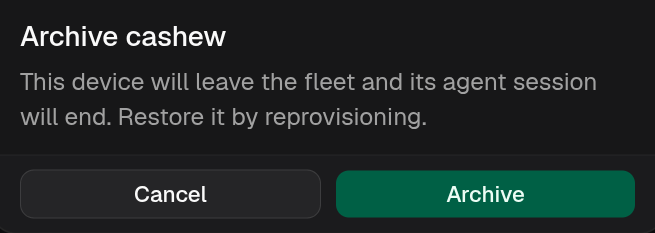
To archive a device, click the ellipses (...) on the device and select **Archive**.

A confirmation dialog will appear—click **Archive** to confirm.
## Restore an archived device
Archived devices can't be unarchived directly. To bring an archived device back, you
must [reprovision](/provision-devices/reprovision) it. The device returns to
`activating` and then `online`, and keeps its deployment history.
Restoring a device counts toward your plan's device limit and will be billed accordingly.
## Delete a device
Deleting a device permanently removes it from Miru and immediately invalidates its
authentication session. This action is irreversible. Please proceed with caution.
A device can only be deleted if it has never had a deployment. Devices with
deployment history must be [archived](#archive-a-device) instead.
To delete a device, click the ellipses (...) on the device you want to delete and hit **Delete**.

A confirmation dialog will appear—click **Delete** to confirm.
